15 Best Free AI Tools for Content Creation in 2026
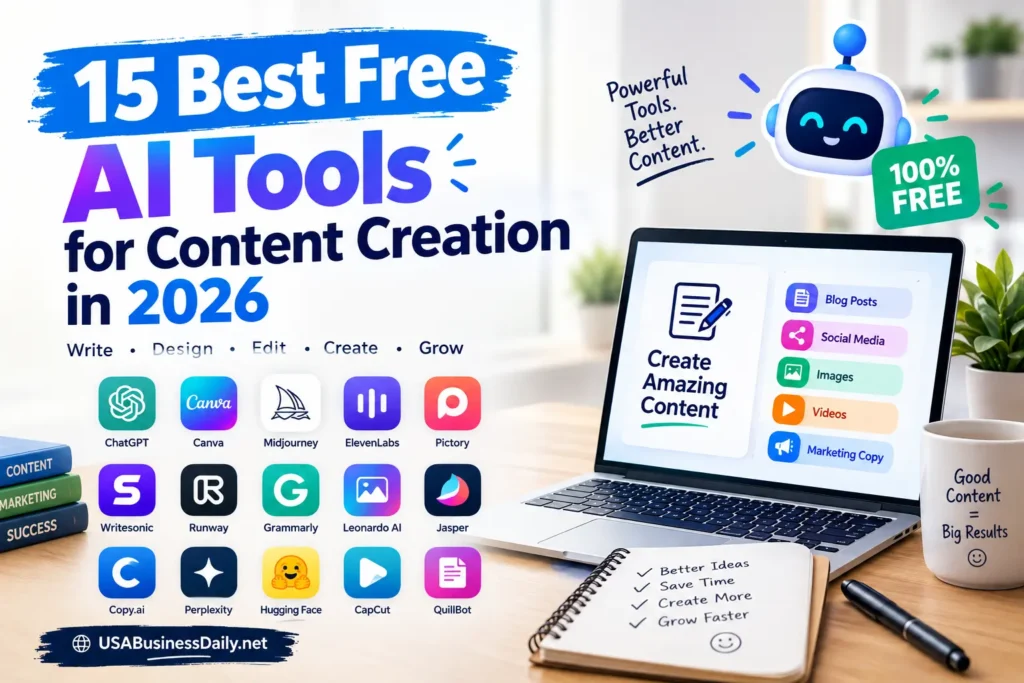
Content takes time. It also takes money, and most small teams have little of either. The good news is that free AI tools for content creation now cover nearly every step of the process. They can help you research, draft, design, edit video, and schedule posts.
However, “free” rarely means unlimited. Some tools give you a permanent free plan. Others give you a small pool of credits. A few allow free use only for personal projects. This guide separates those cases for each tool, so you know what you actually get.
The best free AI tools for content creation depend on the job. ChatGPT, Google Gemini, and Claude help with writing. Perplexity and NotebookLM help with research. Canva, Adobe Express, and Microsoft Designer handle visuals. CapCut and Descript cover video. Every free plan has limits, so check them first.
Why Free AI Tools Matter for Content Teams
AI use at work is already common in the US. Pew Research Center surveyed 5,119 US adults between February 17 and 23, 2026. <u>It found that 38% of employed adults use chatbots for work tasks</u>, and 24% of adults use them to create or edit images or videos. Read the Pew report. That figure covers all work tasks, not content creation alone. Still, it shows how normal these tools have become.
For a small business, this means a $0 starting point is realistic. A solid content marketing strategy no longer needs a large software budget. It needs the right tool for each task and an honest view of each limit.
What “Free” Means in This Guide
We label every tool with one of these access types:
- Free plan: You can use it indefinitely, with caps.
- Free plan with credits: AI features draw from a monthly allowance.
- Free plan, personal use only: The license blocks commercial work.
Pricing pages change often, so treat every limit below as a snapshot. Always confirm the details on the official site before you rely on a tool.
How We Reviewed These Tools
We built this list from official help and pricing pages, plus recent 2026 plan guides. We did not run a hands-on test of all 15 tools, so we do not score or rank them. Instead, we describe what each tool does, who it suits, and where its free plan stops.
Where sources disagreed, we left out the exact number. For example, reports on Canva’s free AI allowance and CapCut’s watermark rules conflict, so we describe the conditions instead.
Quick Comparison of the 15 Best Free AI Tools
| Tool | Best for | Free access type | Main restriction |
| ChatGPT | Brainstorming and drafts | Free plan | Message caps; separate image and upload limits |
| Google Gemini | Writing and multimodal help | Free plan | Limits vary by model and feature |
| Claude | Long-form drafting and editing | Free plan | Usage limits that reset over time |
| Perplexity | Research with source links | Free plan | Advanced search modes are capped |
| NotebookLM | Working from your own sources | Free plan | Source and usage limits |
| Grammarly | Proofreading | Free plan | Advanced suggestions need a paid plan |
| Canva | Social graphics | Free plan with credits | Limited AI uses; premium assets are paid |
| Adobe Express | Quick branded designs | Free plan with credits | Generative AI uses limited credits |
| Microsoft Designer | AI images and layouts | Free plan with credits | Monthly credits for AI creation |
| CapCut | Short-form video | Free plan | Pro assets can add watermarks or need Pro |
| Descript | Transcript-based editing | Free plan | 1 media hour a month; watermarked 720p export |
| ElevenLabs | AI voiceovers | Free plan, personal use only | No commercial license; credit required |
| Buffer | Social scheduling | Free plan | 3 channels; 10 queued posts each |
| Metricool | Scheduling and analytics | Free plan | Limited brands and monthly posts |
| Zapier | Workflow automation | Free plan | 100 tasks a month; two-step Zaps only |
15 Free AI Tools for Content Creation
Free AI Writing Tools
1. ChatGPT: Best for Brainstorming and First Drafts
ChatGPT works well when you have a topic but no angle. It can suggest headlines, build outlines, and draft short copy. It also rewrites text in a different tone.
Free access: Free plan. According to the OpenAI Help Center, data analysis, file uploads, and image creation have their own rate limits. Those limits are stricter than on paid plans.
Limitation: Model access and message caps change often. A busy day can push you to a smaller model.
Try this prompt: “Give me 10 blog headline ideas for a local bakery. Target readers who live within 10 miles. Keep each under 60 characters.”
Verdict: Start here if you want one general-purpose assistant.
2. Google Gemini: Best for Writing With Google Apps
Gemini suits people who already live in a Google account. It drafts text, summarizes long material, and can work with images. Its free access depends on the model and feature, so limits vary.
Free access: Free plan with a Google account.
Limitation: Google sets usage caps that can differ by feature. Check the in-app notice before you plan a big batch of work.
Try this prompt: “Summarize this press release in three sentences. Then write two LinkedIn post options for a business owner audience.”
Verdict: A strong second assistant for cross-checking drafts.
3. Claude: Best for Long-Form Drafting and Editing
Claude handles long text well. It is useful for tightening an article, matching a tone, or restructuring a rough draft. It also asks useful questions when your brief is thin.
Free access: Free plan with usage limits that reset over time.
Limitation: Heavy sessions can hit the cap quickly, especially with long documents.
Try this prompt: “Edit this 800-word draft for clarity. Keep my voice. Flag any claim that needs a source.”
Verdict: Best for editing passes after you write a first draft.
Free AI Research Tools
4. Perplexity: Best for Research With Source Links
Perplexity answers questions and shows the sources behind each answer. That makes fact-checking faster. You can open each link and confirm the claim yourself.
Free access: Free plan. Advanced search modes are limited.
Limitation: A cited answer is not a verified answer. Always open the source before you publish a statistic.
Try this prompt: “What are the most cited 2026 surveys on small business AI adoption in the US? List the publisher and date for each.”
Verdict: Use it for discovery, then verify on the original page.
5. NotebookLM: Best for Working From Your Own Sources
NotebookLM answers questions using only the documents you upload. As a result, it stays closer to your material than a general chatbot does. It suits interview notes, reports, and research packs.
Free access: Free plan with limits on sources and usage.
Limitation: It only knows what you give it. Thin sources produce thin answers.
Try this prompt: “Using only my uploaded notes, list the five strongest points for an article on customer retention.”
Verdict: Ideal when accuracy matters more than creativity.
6. Grammarly: Best for Proofreading
Grammarly catches spelling, grammar, and punctuation errors as you type. It also flags unclear sentences. It will not fix a weak argument, but it keeps a clean draft clean.
Free access: Free plan with basic checks. More advanced suggestions and AI features need a paid plan.
Limitation: It can push you toward bland phrasing. Accept suggestions selectively.
Verdict: A good final pass before you publish.
Free AI Image and Design Tools
7. Canva: Best for Social Graphics
Canva remains the easiest design tool for non-designers. Its free plan includes templates and a limited set of AI features, such as image generation and writing help.
Free access: Free plan with credits. The AI allowance is limited, and premium assets and the Brand Kit sit behind Pro. Compare plans on the Canva pricing page.
Limitation: AI features share one allowance, so heavy image generation can use it up.
Try this: Create a square post with a headline, one photo, and your brand colors. Then resize it for a story format.
Verdict: Best all-round pick for social media visuals. For SEO, also learn ==how to optimize images for SEO== before you upload them.
8. Adobe Express: Best for Quick Branded Designs
Adobe Express covers flyers, social posts, and short videos. Its templates feel polished, and the editor is simple. Generative AI features use a limited credit system on the free plan.
Free access: Free plan with credits.
Limitation: Some premium templates and advanced features need a paid plan.
Verdict: A good alternative if Canva’s style does not fit your brand.
9. Microsoft Designer: Best for AI Images and Layouts
Microsoft Designer turns a text prompt into an image or a full layout. A free Microsoft account is enough to start.
Free access: Free plan with credits. Microsoft says AI creation and editing use monthly credits that refresh each month.
Limitation: The free allowance is modest. Plan your images before you start.
Try this prompt: “A clean flat illustration of a small business owner at a laptop, soft blue palette, space for a headline at the top.”
Verdict: A solid free AI image generator for blog headers and social posts.
Free AI Video and Audio Tools
10. CapCut: Best for Short-Form Video
CapCut is a full video editor with auto-captions, templates, and effects. It fits Reels, Shorts, and TikTok-style clips.
Free access: Free plan. Projects that use Pro-marked templates or effects can trigger a watermark or require Pro. Some AI features and 4K export are also restricted.
Limitation: The limits show up at export, not while you edit. Test an export before you promise a deadline.
Verdict: One of the most capable free AI video tools for social clips.
11. Descript: Best for Editing Video by Editing Text
Descript transcribes your recording. You then cut the video by deleting words in the transcript. This saves hours on interviews and podcasts.
Free access: Free plan. It includes 1 media hour a month, 100 one-time AI credits, and one seat. Exports are 720p with a watermark.
Limitation: The watermark rules out client-facing work on the free plan.
Verdict: Great for learning the workflow and for internal drafts.
12. ElevenLabs: Best for AI Voiceovers
ElevenLabs turns a script into natural speech. It suits explainer videos, audio summaries, and drafts of narration.
Free access: Free plan with 10,000 credits a month, roughly 10 minutes of audio. The free plan has no commercial license, and public posts need attribution to ElevenLabs.
Limitation: Attribution does not change the license. A monetized video needs a paid plan.
Verdict: Use it for testing voices. Upgrade before you publish commercial work.
Free AI Tools for Social Media and Workflow
13. Buffer: Best for Scheduling Posts
Buffer lets you plan posts across channels from one dashboard. Its free plan covers three channels with ten queued posts each.
Free access: Free plan. The ten-post limit is a queue cap, not a monthly cap. A slot reopens each time a post goes live.
Limitation: Three channels fill up fast for multi-platform brands.
Verdict: Pair it with a ==social media content calendar== so your queue never runs dry.
14. Metricool: Best for Scheduling Plus Analytics
Metricool combines scheduling with performance reports. That helps you see which posts actually work.
Free access: Free plan with limited brands and monthly posts. Confirm which networks the free plan includes on the Metricool site.
Limitation: The monthly post cap can restrict active publishers.
Verdict: Good for solo creators who want data without a subscription.
15. Zapier: Best for Automating Repeat Tasks
Zapier connects your apps. For example, it can save new form entries to a spreadsheet and notify your team.
Free access: Free plan. According to the Zapier Help Center, it includes 100 tasks a month, shared between Zaps and MCP server actions.
Limitation: Free Zaps allow two steps only: one trigger and one action. Anything longer needs a paid plan.
Verdict: Automate one painful chore first. Do not try to rebuild your whole workflow.
How to Choose the Right Free AI Tool
Start with your biggest time drain, not the longest feature list.
| If you are a… | Start with | Add next |
| Blogger | ChatGPT or Claude | Perplexity, Grammarly |
| Social media manager | Canva | Buffer, CapCut |
| Small-business owner | ChatGPT | Canva, Zapier |
| YouTuber | CapCut | Descript |
| Student or researcher | NotebookLM | Perplexity |
Small teams can also read our guide to ==AI tools for small businesses==. Beginners should pick two tools, not fifteen. Learn them well before you add a third.
A $0 Content Workflow You Can Follow Today
This workflow combines the free tools above into one repeatable process.
- Research. Ask Perplexity for sources. Open each one and confirm the numbers.
- Organize. Upload your notes to NotebookLM and pull out key points.
- Outline and draft. Use ChatGPT or Claude to build a first draft. Our guide on ==how to write SEO-friendly blog posts== explains how to match search intent.
- Edit by hand. Add your own examples, fix weak claims, and rewrite generic lines.
- Proofread. Run the text through Grammarly.
- Design. Make a header image in Canva or Microsoft Designer.
- Repurpose. Turn the article into a short clip in CapCut.
- Schedule. Queue the posts in Buffer.
- Check SEO. Review titles, headings, and links. Our list of the ==best free SEO tools== can help.
Can You Use Free AI Output for Business?
Often yes, but not always. Rights depend on the tool, the plan, and the type of asset. ElevenLabs is the clearest example: its free plan blocks commercial use entirely.
Before you publish, run this quick check:
- Read the plan’s commercial-use terms.
- Check whether attribution is required.
- Look for watermarks on exports.
- Confirm that you may use the output for client work.
Search quality matters too. Google’s guidance asks for helpful, reliable, people-first content. AI can assist, but a person should check the facts and add real value. For more on this, read our piece on ==how to use AI responsibly==.
Are Free AI Tools Good Enough for Professional Work?
For many tasks, yes. Free plans handle drafting, research, simple graphics, and scheduling well. Problems appear when you need volume, clean exports, or commercial rights.
Consider upgrading when you:
- Hit message or credit caps every week.
- Need watermark-free video.
- Need a commercial voice license.
- Manage more than three social channels.
- Run automations longer than two steps.
Upgrade one tool at a time. Pay only for the limit that actually blocks you.
Common Mistakes to Avoid
Publishing without fact-checking. AI can state wrong facts with confidence. Verify every statistic and date.
Skipping the edit. Raw output often sounds generic. Our ==AI content writing tips== show how to add voice and detail.
Ignoring license terms. A free plan may forbid commercial use.
Chasing too many tools. Each new tool adds setup time. Master a few first.
Trusting old pricing. Limits change often. Recheck before you commit.
Frequently Asked Questions
What are the best free AI tools for content creation?
It depends on the task. ChatGPT, Gemini, and Claude suit writing. Perplexity and NotebookLM suit research. Canva suits design, and CapCut suits video.
Can I create content with AI for free?
Yes. You can research, draft, design, edit, and schedule using free plans. However, usage caps and license terms differ by tool.
Which free AI tool is best for blog writing?
ChatGPT, Gemini, and Claude all work well for outlines and drafts. Test two of them on the same brief. Then compare accuracy and editing effort.
Which free AI tool is best for social media?
Canva handles graphics, and ChatGPT can draft captions. CapCut covers short video, and Buffer schedules posts.
Are free AI tools safe for commercial use?
Not automatically. Rights vary by platform and plan. ElevenLabs’ free plan, for example, has no commercial license.
Can AI-generated content rank on Google?
Yes, if it is helpful, accurate, and reviewed by a person. Google focuses on content quality. Mass-produced pages made to manipulate rankings can break its spam policies.
Do free AI tools add watermarks?
Some do. Descript’s free plan exports watermarked 720p video. CapCut can add one when a project uses Pro-marked assets.
What is the best free AI tool for beginners?
Start with one assistant, such as ChatGPT or Gemini. Add Canva if you need visuals.
Conclusion
You do not need all 15 tools. Pick one writing assistant, one design tool, and one scheduler. Then test them on a real task this week.
Compare each plan’s limits on its official site first. Then build your workflow one tool at a time. For more practical guides, keep reading USABusinessDaily.